Translator & Flashcard Sync
Transform your translation conversations into interactive flashcards for a seamless language learning experience. Two powerful approaches to build your study materials.
💡 Why This Matters: The app allows you to import conversations directly into interactive flashcards for a seamless language learning experience. Turn real-world conversations into study materials instantly!
Two Approaches to Create Flashcards from Translations
octa AI offers two distinct methods for creating flashcards from your translations, each suited for different learning workflows:
Approach 1: From Whole Conversations
Import entire conversation history into flashcards. Perfect for capturing natural dialogue and context-rich phrases.
Approach 2: From Glossary Terms
Fine-granular control - create new translations in any language from specific glossary terms. Ideal for targeted vocabulary building.
Approach 1: From Whole Conversation History
This method captures entire conversations, preserving context and natural language flow. Perfect for learning phrases as they appear in real dialogue.
Step 1: Save the Conversation
After completing a conversation or translation session:
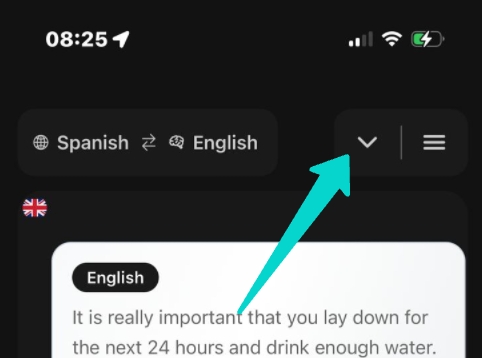
- Open the menu by clicking on the downward arrow
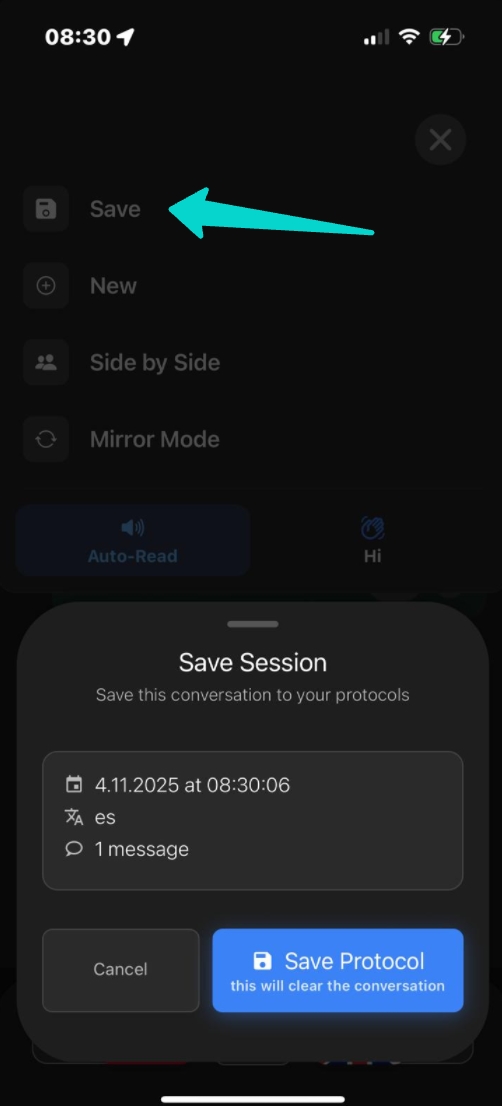
- Click "Save" to preserve the conversation
Step 2: Create a Learning Stack
Navigate to the learning screen and create a new stack:
- Go to the learning screen
- Click "Create a new learning stack MANUALLY"
- Enter all details:
- Stack name
- Description (optional)
- Target language
- Category assignment
Step 3: Import from Transcripts
Now import the saved conversation:
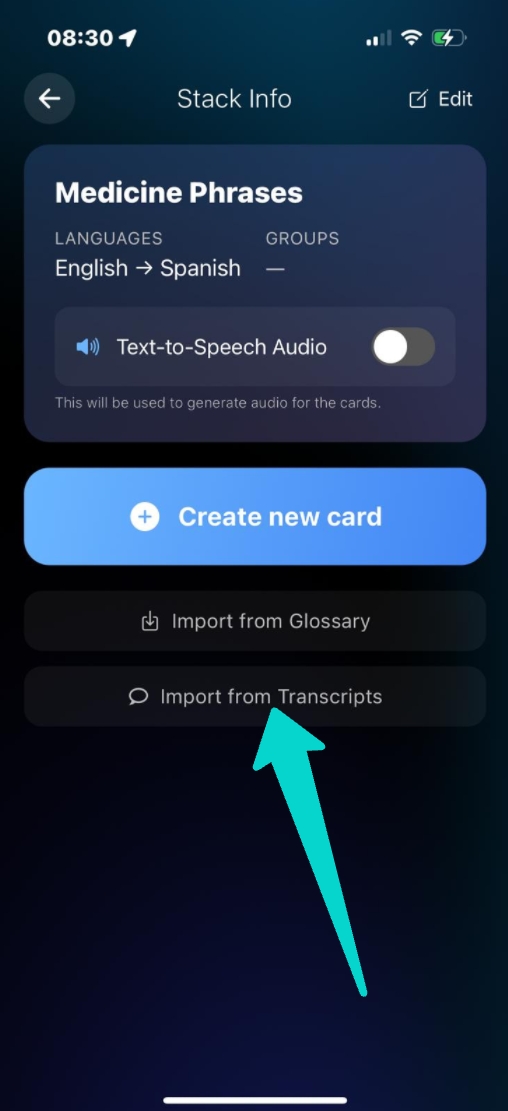
- Click on "Import from transcripts"
- Choose a transcript you want to import the translation pairs from
- Select which translations you want to include
- Click "Import"
- Review the imported cards
- If everything is fine, click the arrow back and "Save"
- Start learning!
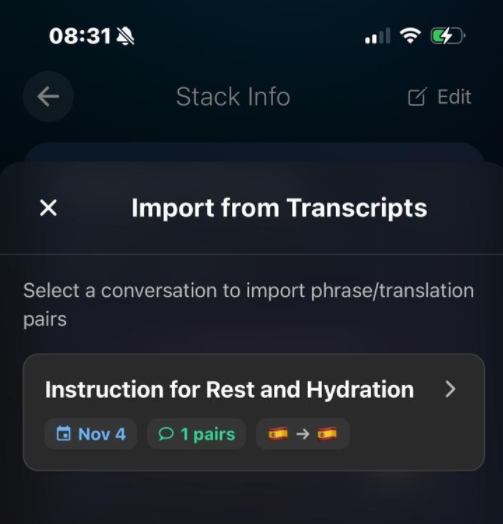
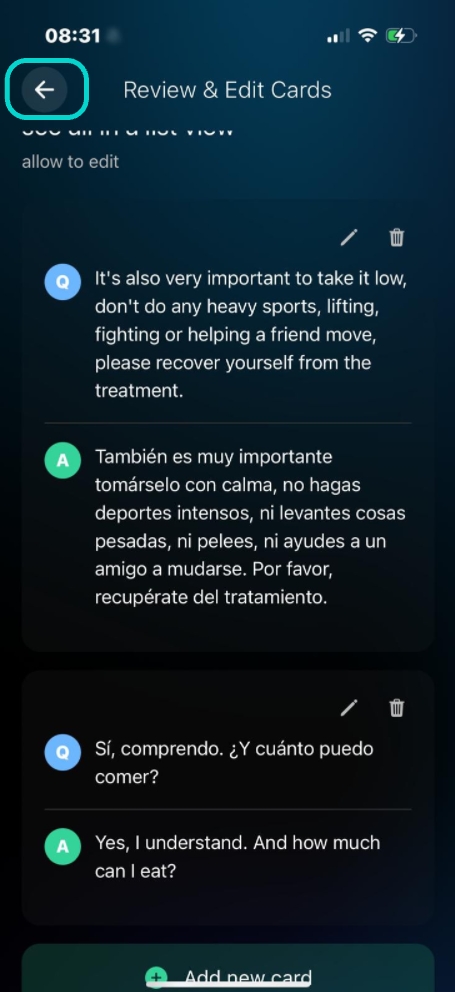
📝 What Gets Imported: Each translation pair from your conversation becomes a flashcard. The original phrase appears on one side, the translation on the other, preserving the context from your real conversation.
Approach 2: From the Glossary
A more fine-granular approach that allows you to create new translations in any language from specific glossary terms. Perfect for building targeted vocabulary sets.
Step 1: Save Term from a Conversation or manually create glossary terms
⚠️ Note: If you already created your glossary terms manually in the Glossary, you can skip to step 2.
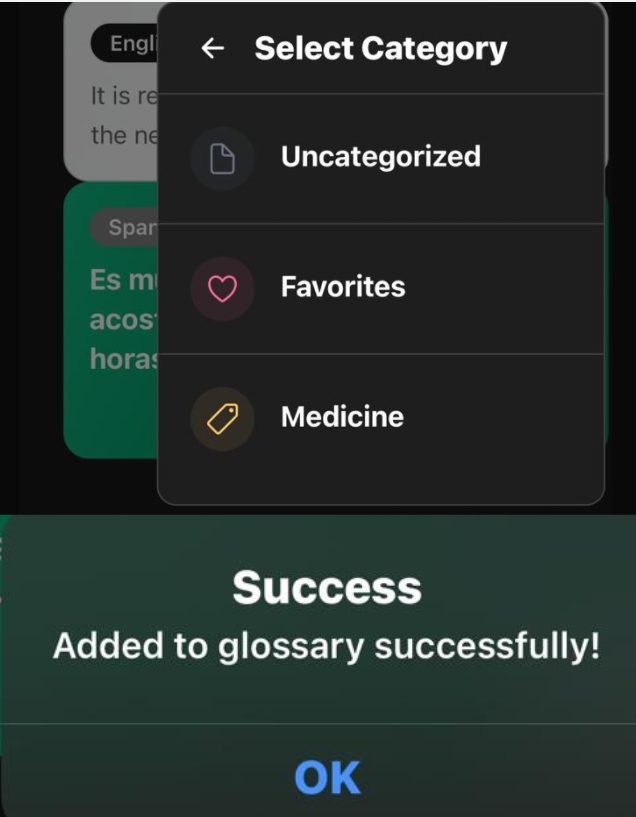
Start with a long-press action to create a glossary term:
- Long-press on a chat bubble
- Save the term to glossary if not already saved
- Select the appropriate category
Step 2: Go to Learning Screen
Navigate to the learning area and set up your flashcard stack:
- Go to the learning screen
- Create a new learning stack MANUALLY
- Enter all details until you reach the "create new card screen"
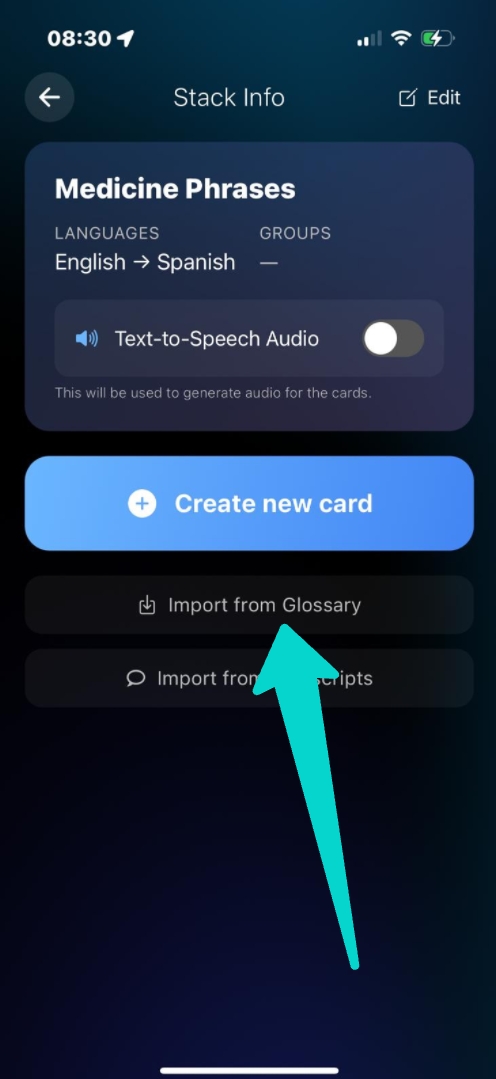
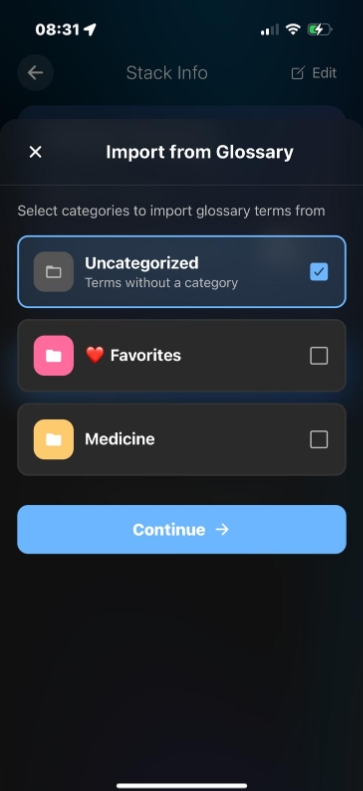
Step 3: Import from Glossary
Now select specific terms from your glossary:
- Click on "Import from glossary"
- Select a category (or browse all)
- Choose the terms to import
- For automatic translation in the target language, keep the toggle "AI translation" ON

Step 4: Review and Save
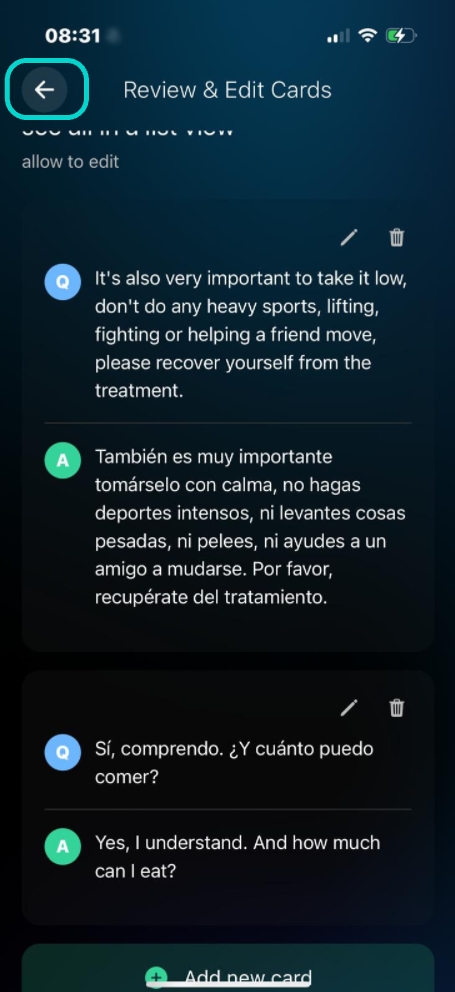
Final steps to complete your flashcard deck:
- Done! Review your cards
- Go back to the main screen
- Click "Save"
- You are ready to learn! 🎉
✨ Pro Tip: Use Approach 1 for conversational practice and Approach 2 for building specialized vocabulary. Combining both methods gives you comprehensive language learning coverage!
Key Features
🤖 AI-Powered Translation
When importing from glossary, the AI translation toggle automatically translates all selected terms into your target language, saving you time and ensuring consistency.
📊 Smart Categorization
Flashcards are automatically organized by:
- Topic/Category - Group related terms together
- Language pair - Keep source and target languages organized
- Source - Know whether cards came from conversations or glossary
🔄 Spaced Repetition
Built-in spaced repetition system ensures you review flashcards at optimal intervals for long-term retention. The app tracks your progress and adjusts review timing based on your performance.
☁️ Sync & Export
Your flashcard decks sync across devices and can be:
- Exported for backup
- Shared with study partners
- Imported to other language learning tools
When to Use Each Approach
Use Conversation Import When:
- Learning conversational phrases
- You want context-rich examples
- Studying natural dialogue flow
- Building practical communication skills
Use Glossary Import When:
- Building specialized vocabulary
- Creating thematic word lists
- Studying technical terminology
- Preparing for specific topics
Best Practices
- Mix both approaches - Use conversations for context and glossary for targeted vocabulary
- Review regularly - Follow the spaced repetition schedule for best results
- Use categories wisely - Organize flashcards by topic, difficulty, or learning goal
- Keep AI translation on - Let the system handle translations for consistency
- Save conversations - Don't lose valuable learning material from real interactions
- Start small - Begin with 10-15 cards per stack for manageable learning sessions
🎓 Learning Tip: Create separate stacks for different aspects of learning - one for phrases from real conversations, another for vocabulary from your glossary. This helps you track progress in different skill areas.