
Glossary & Knowledge Base
Build a customized wiki and phrasebook with stored knowledge articles. Perfect for recurring sentences, specialized terminology, and product information.
💡 Perfect for: Pharmacies explaining medications, tech support with product specs, healthcare professionals, training sessions, and business meetings with recurring technical terms.
Why Use the Glossary?
The Glossary feature allows octa AI to recognize specific terms during conversations and:
- Spell them correctly for accurate translation (enhancing voice transcription accuracy by up to 95%)
- Display stored information instantly via an interactive chip
- Provide context with definitions, descriptions, images, and reference materials
- Maintain consistency across all translations for teams and professionals
Create Your Glossary / Knowledge Articles
Building your glossary is simple and can be done directly from the app's home screen.
Step 1: Access the Glossary
From the home screen, click on the Glossary button in the Quick Access section.

Step 2: Glossary Management
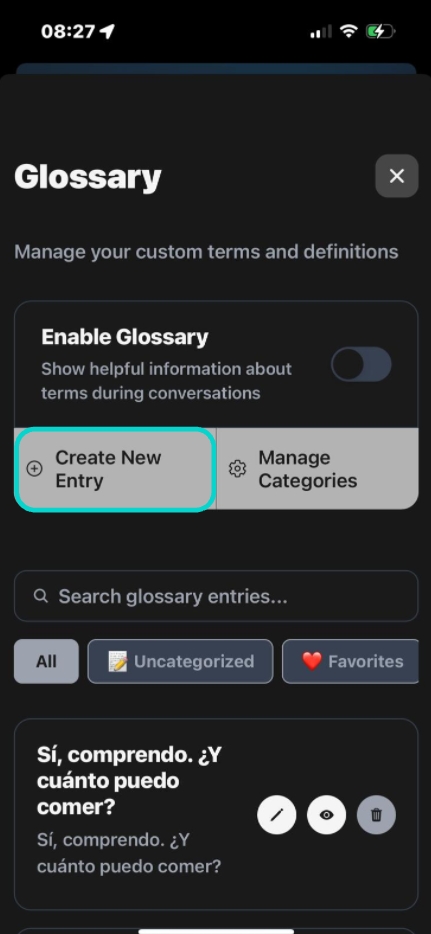
The Glossary screen allows you to manage all your custom terms and definitions. You have two main options:
- Create New Entry - Add a new term to your glossary
- Manage Categories - Organize your entries into categories
You can also search existing entries and view them by category (All, Uncategorized, Favorites, Custom Categories).
Step 3: Add a New Entry
When creating a new glossary entry, you can add comprehensive information:
- Title - The main term to be detected (e.g., "Paracetamol", "Ibuprofen 600")
- Description - Brief explanation or definition (e.g., "Medication")
-
Images - Add product photos, diagrams, or reference images
- Upload from your device or paste image URLs
- Multiple images supported
-
Content Blocks - Add detailed information sections
- Text blocks for instructions, warnings, or notes
- Multiple content blocks to organize information
- Example: "Attention: Do not combine with Ibuprofen. Do not combine with alcohol!"
-
Categories - Assign to one or more categories
- Favorites for quick access
- Custom categories you create
You don't need to fill out every field when creating a glossary entry—just adding a term is enough! If the term is detected during a conversation, octa AI will automatically correct misunderstandings in translation, transcribe it accurately, and give you quick access to it. This is very useful for tricky names, product names, technical terms, or frequently used phrases that need reliable translation and instant recall, even if no other details are added.

📝 Note: All fields support multiple languages. When you create an entry, octa AI can translate the entire knowledge article into the recipient's language with one click during conversations.
Step 4: Try It Out!
🎉 You have created your first knowledge article in your glossary! Now, let's see it in action:
- Go to the Translation screen.
- Simply say the term you saved in the glossary using the right side flag button.
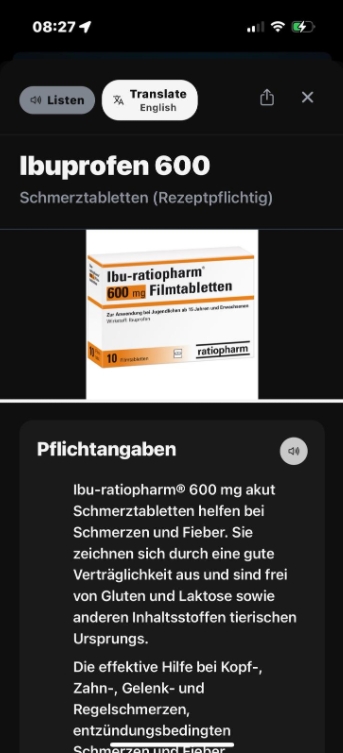
- The system will automatically detect the term and display your knowledge article.
- With just one click, you can translate the entire article for your recipient.
Tip: The term will also be detected in a full sentence. Try this process with different entries for instant access to your knowledge while translating!
✨ Next Step: Once you've created your glossary entries, learn how to use them effectively in conversations! Check out the During Conversations guide.
Best Practices
- Be specific with titles - Use the exact term as you would say it
- Add visual references - Images dramatically improve understanding
- Include warnings - Use content blocks for critical information (contraindications, safety notes)
- Organize with categories - Group related terms for easier management
- Keep descriptions concise - Save detailed info for content blocks
- Test pronunciation - Say the term in a test conversation to ensure recognition