
Using Glossary During Conversations
Learn how to leverage your custom glossary in real-time conversations for accurate translations and instant knowledge sharing.
✨ Quick Tip: The glossary automatically recognizes terms as you speak, enhancing transcription accuracy by up to 95% and providing instant access to stored knowledge articles.
Automatic Term Recognition
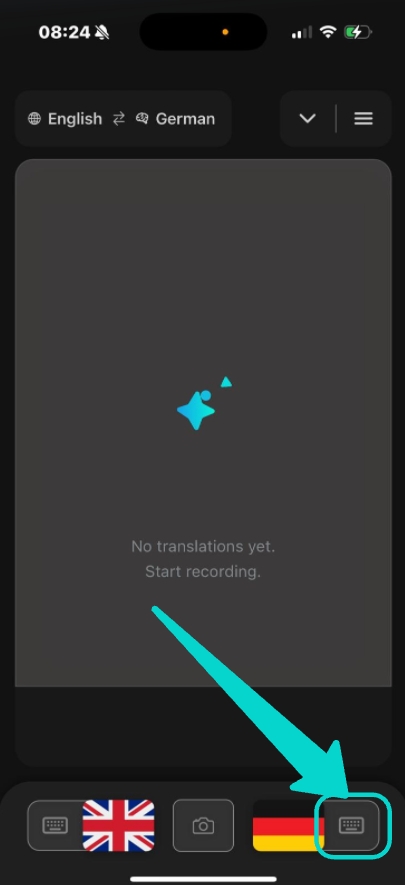
ℹ️ Note: This feature is only available via the control buttons placed on the right side of the translator screen (see first image below).
During conversations, octa AI actively monitors your speech for terms stored in your glossary. When a match is found, the app instantly displays it for quick access and accurate translation.
Right-Side Keyboard Access
-
When you speak using the flag (microphone) button on the right side, any glossary term you mention is automatically detected in real time.
Example: If you say, "We have ibuprofen in stock," the app detects "Ibuprofen" from your glossary and displays a chip for instant access to its knowledge article directly from the translation screen. This creates seamless integration of your knowledge base into any conversation. - For typing, click the keyboard icon on the right side of the screen to open glossary access (see image).
- Browse, search, and insert multiple glossary terms quickly—without leaving the conversation screen.
Text Input with Autocomplete
When typing in the conversation interface, the app helps you by:
- Auto-suggesting after 3 letters - Start typing and matching glossary terms appear
- Smart matching - Finds relevant terms even with partial input
- Quick insertion - Tap the suggestion to auto-fill your input field
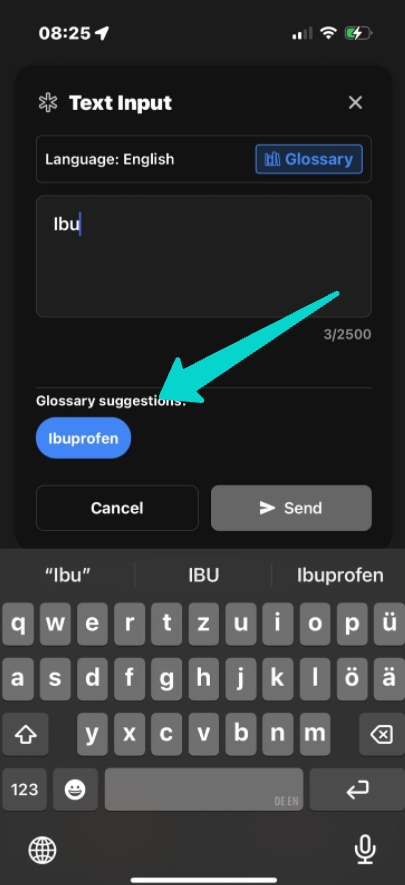
📝 How it works: As shown above, when you type "ibu" the app immediately suggests "Ibuprofen" from your glossary. Once selected, it auto-fills the complete term and displays it below the text input field for easy access.
Quick Access via Glossary Button
Alternatively, you can browse and insert glossary terms directly without typing:
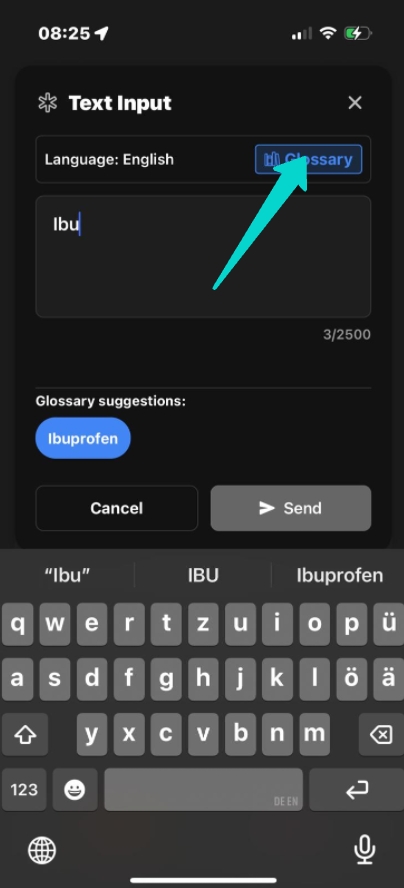
- Click the blue "Glossary" button in the top right of the conversation screen
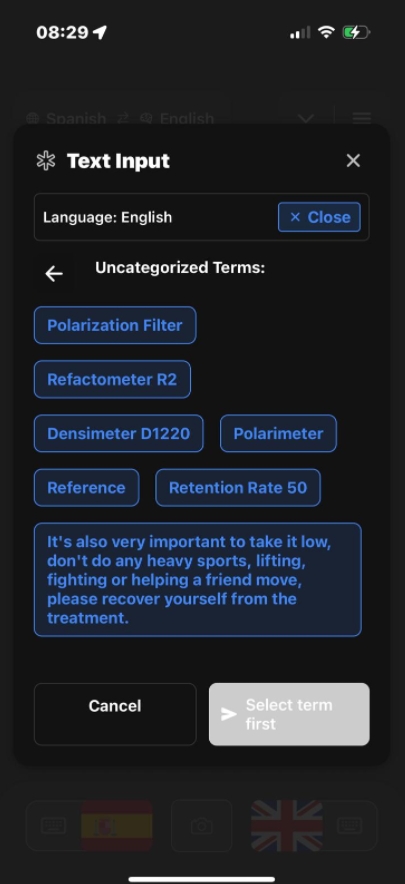
- Browse through all your stored terms organized by category
- Select any term to use it in your conversation
Viewing Glossary Entries
When you click on the blue glossary chip that appears below your text message, the full knowledge article opens instantly.
What You See
- Term - The main term with its information
- Description - Brief explanation or definition you entered
- Content Blocks - Detailed information, warnings, or instructions
- Images - Product photos, diagrams, or reference materials
- Language Options - Flag indicators showing available translations

Translate & Share Knowledge
The real power of the glossary shines when communicating across languages. Here's how to share knowledge articles with your conversation partner:
Translation Workflow
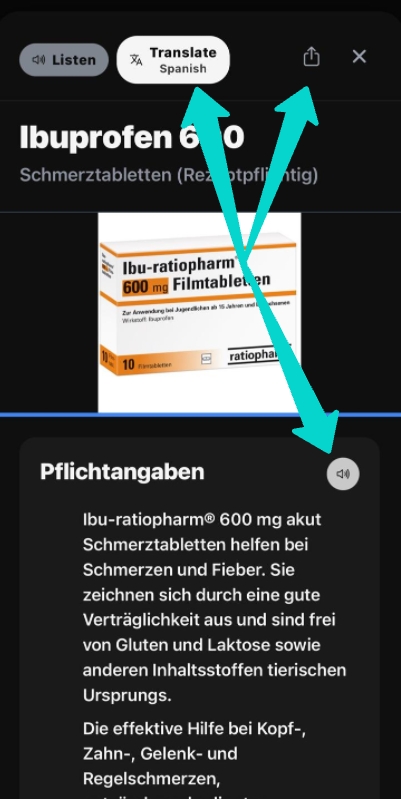
- Open the glossary entry by clicking the blue chip
- Click the translate button (blue arrow) to convert the entire article
- Target language is automatically detected using the language from your conversation partner
- AI reads it aloud in the recipient's language with natural pronunciation
- Share the article with your conversation partner in their native language
Example: Medication Information
In the example shown above, the term "Ibuprofen 600" is recognized and its full knowledge article is displayed. The article includes:
- German content: "Bei mittelschweren 600 mg akut Schmerztabletten helfen bei Schmerzen und Fieber..."
- Detailed warnings: Dosage information and contraindications
- Product image: Visual reference of the medication packaging
- One-click translation: Convert everything to Spanish, English, or any other language
💡 Pro Tip: This is especially valuable in pharmacy settings where accurate medication information needs to be communicated across language barriers. The entire article—warnings, dosage, and all—translates in one click!
Real-World Scenarios
Pharmacy: Explaining Prescriptions
Scenario: A patient who speaks Spanish needs ibuprofen.
Solution: Type "ibu", select from glossary, click translate, and the complete medication guide appears in Spanish with dosage, warnings, and images.
Tech Support: Product Specifications
Scenario: Customer needs help with a specific part.
Solution: Use glossary to pull up the part's specifications, diagrams, and troubleshooting steps. Share in their language instantly.
Healthcare: Patient Education
Scenario: Explaining a medical procedure to a patient.
Solution: Access the procedure's glossary entry with diagrams and step-by-step explanations. Translate to patient's native language for clear understanding.
Best Practices
- Keep terms updated - Regularly review and update your glossary entries
- Add common variations - Include different spellings or shortened versions
- Use clear categories - Organize by product type, medical category, or department
- Include visuals - Always add images when possible for clarity
- Test pronunciation - Ensure the app recognizes your spoken terms
- Mark favorites - Tag frequently used terms for quick access
🔒 Privacy Note: All glossary data is stored securely and syncs across your devices. Your custom knowledge base remains private and is never shared without your explicit consent.